

As a surveyor, you may come across a site with a set of different stockpile types that you need to calculate. This article helps you understand how boundaries, reference surfaces, and terrain modeling work together, so that you’ll be able to create dependable stockpile calculations with confidence — no matter the site conditions. You'll see how you can measure stockpiles correctly in multiple scenarios, validate your work visually, and get stockpile results for in-depth analysis all within the VirtualSurveyor app.
Overview
- Remove Conveyors
- Stockpile Baseline Boundary
- Set the Stockpile Reference Level
- Validation
- See Stockpile Results
- Tips to Get the Most Out of Stockpiles
Remove Conveyors
Before calculating a stockpile, it’s important to remove any objects that rest on top of or hang over the pile. Equipment such as conveyors, wheel loaders, or other machinery should not be included in the volume calculation.
Start by removing conveyors and other unwanted objects from your stockpiles that could affect the volume calculation. You can remove unwanted objects by enabling the Replace Terrain tool and tracing around the portion of the conveyor you want to remove.
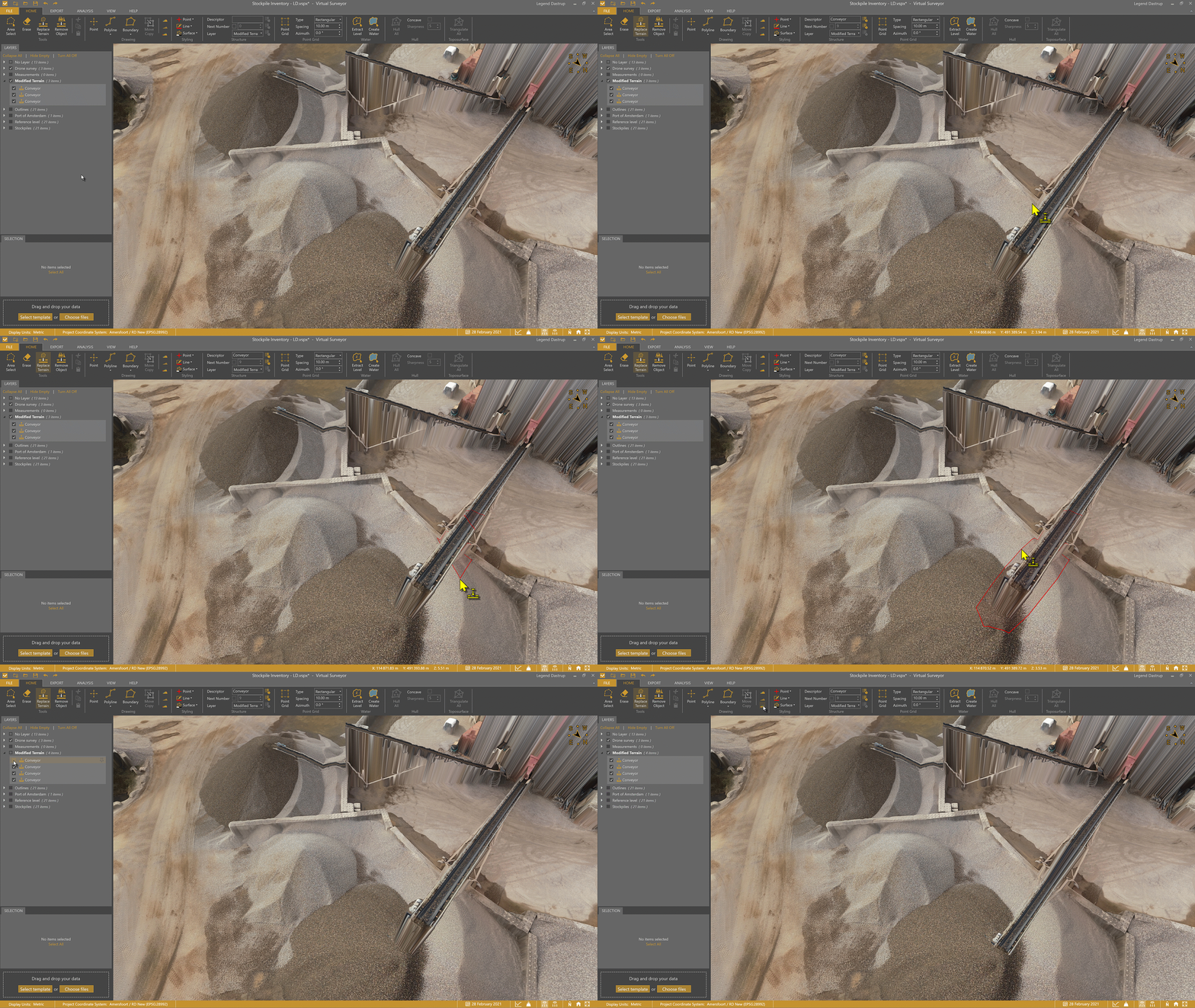
For more complex terrain cleaning workflows, refer to the Remove a Conveyor article, which covers advanced removal techniques in greater detail.
Stockpile Baseline Boundary
Every stockpile calculation begins with a boundary that defines the footprint of the pile. Use the Boundary tool to draw a line around the stockpile area. Drawing stockpile outlines is often easiest in 2D view mode, where edges and overlaps are easier to identify.
First draw the boundary around your stockpile, then follow the Create a Stockpile section in this article to see how to use that boundary to define the correct reference surface.
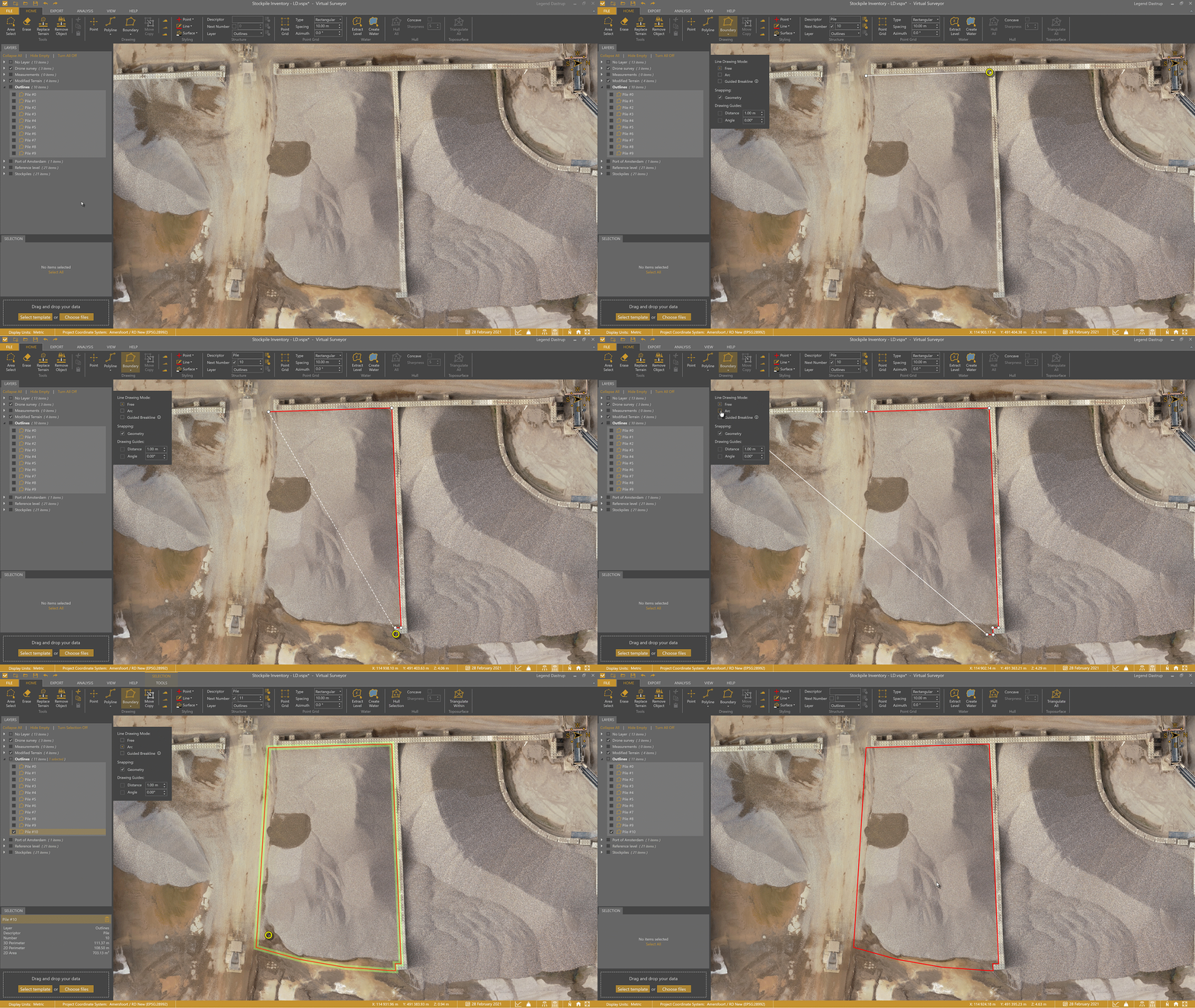
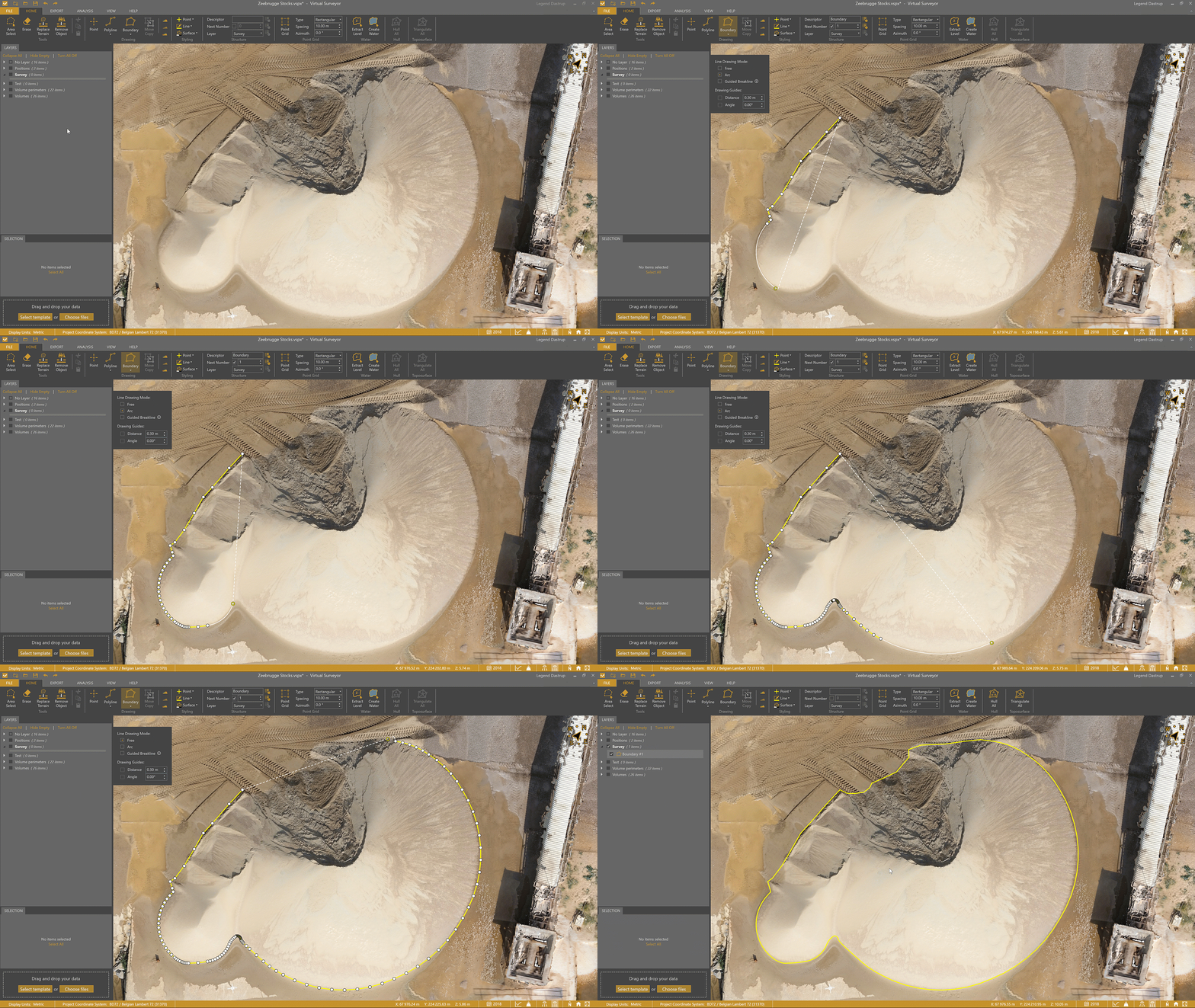
You can also use several drawing modes — such as Free, Arc, and Guided Breakline— to help speed up the boundary drawing process.
Set the Stockpile Reference Level
Setting the correct stockpile reference level is key to producing reliable results. While freestanding stockpiles can often use the baseline boundary, more complex scenarios — such as walled, overlapping, or banked stockpiles — require additional setup.
VirtualSurveyor provides several surface reference methods to handle these situations accurately:
- Freestanding
- Open wall on a flat area
- Enclosed wall
- Open wall on a sloped area
- Overlapping
- On a bank
Each method is designed to model the terrain beneath the stockpile (aka reference surface) as realistically as possible.
Freestanding Stockpile
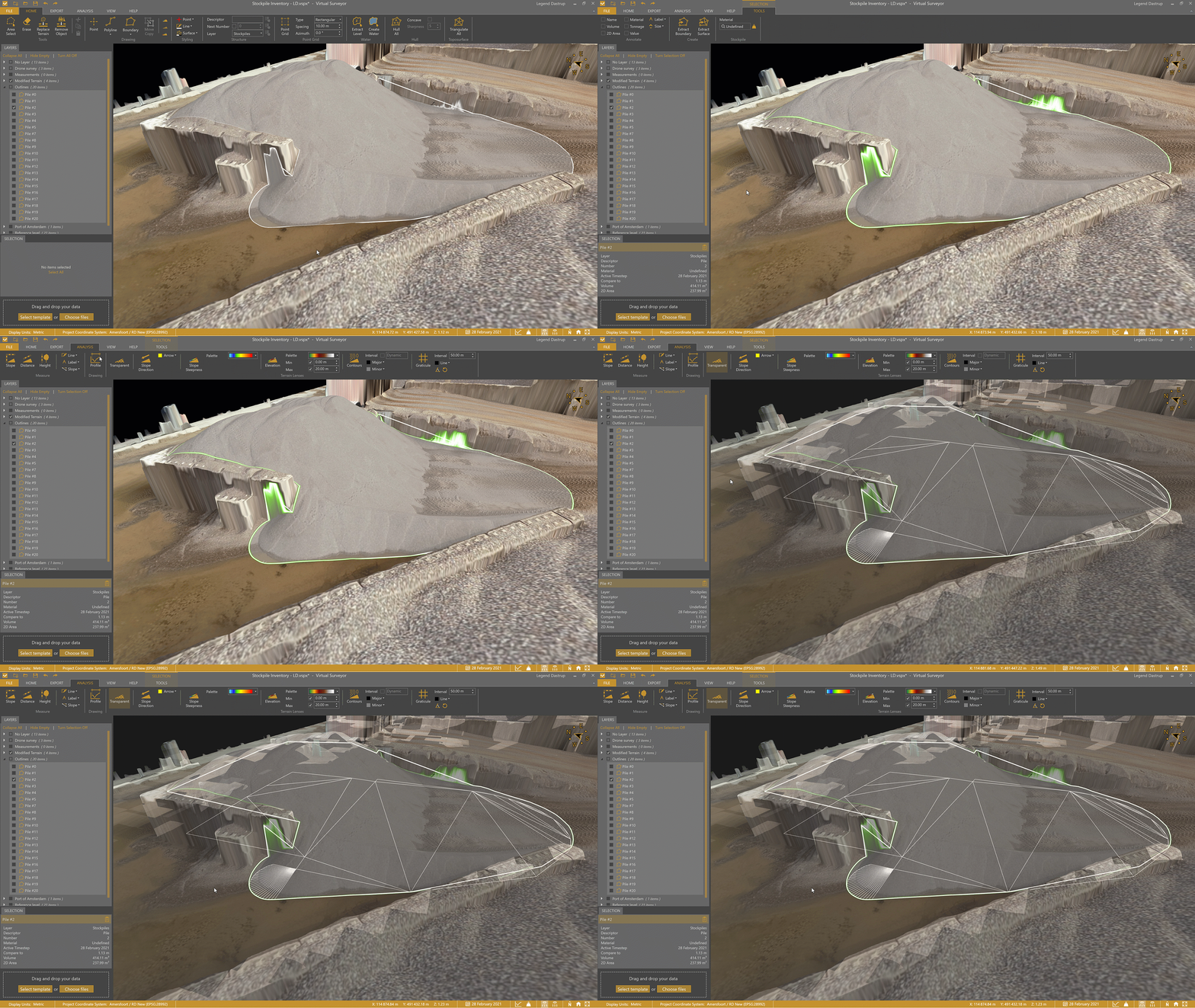
For freestanding stockpiles, select the boundary around the pile, then use the 3D Surface setting to create the stockpile. The base surface is triangulated from the vertices of the boundary so accuracy here is important — a well drawn boundary ensures the surface reflects the true ground level beneath the pile.
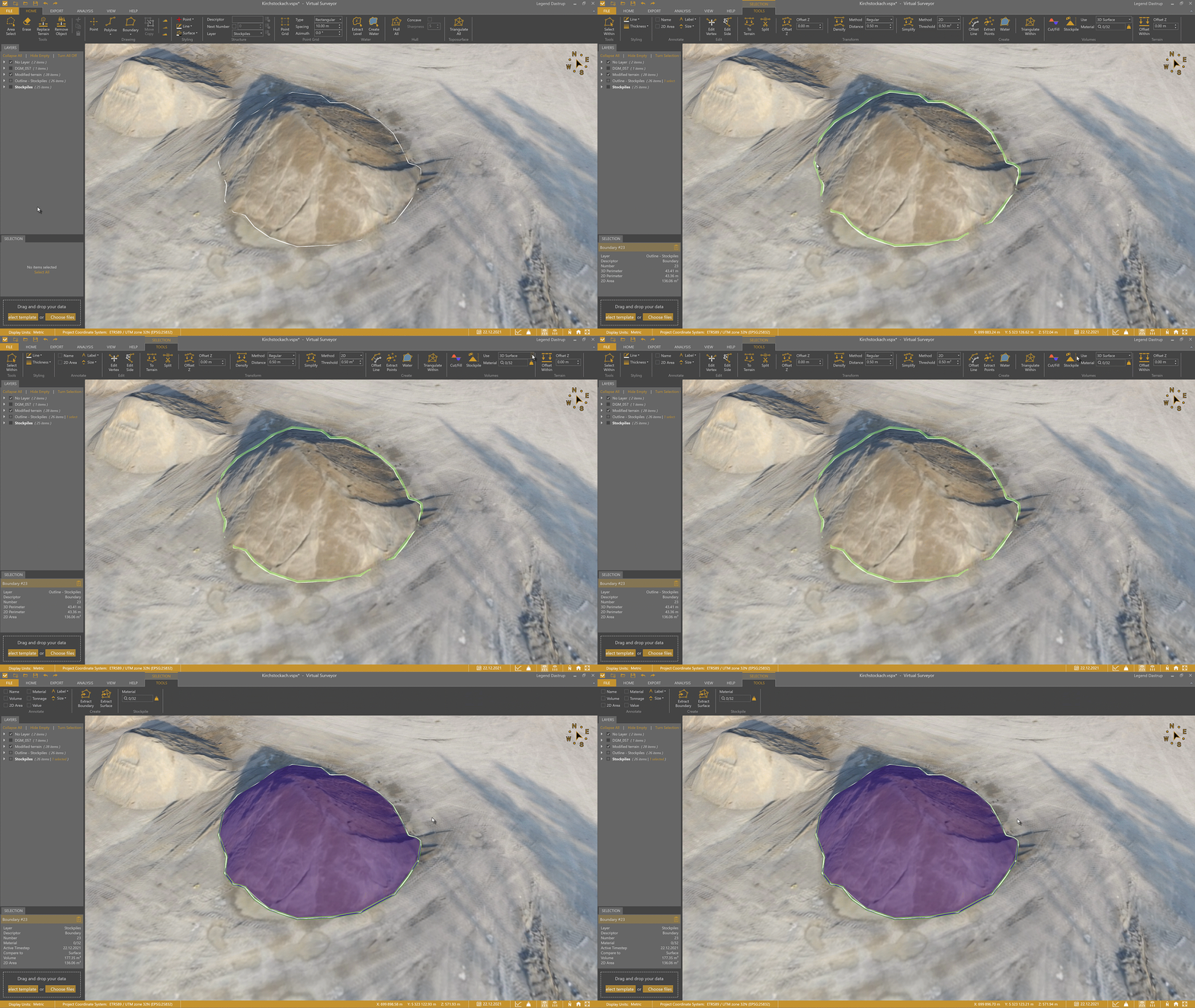
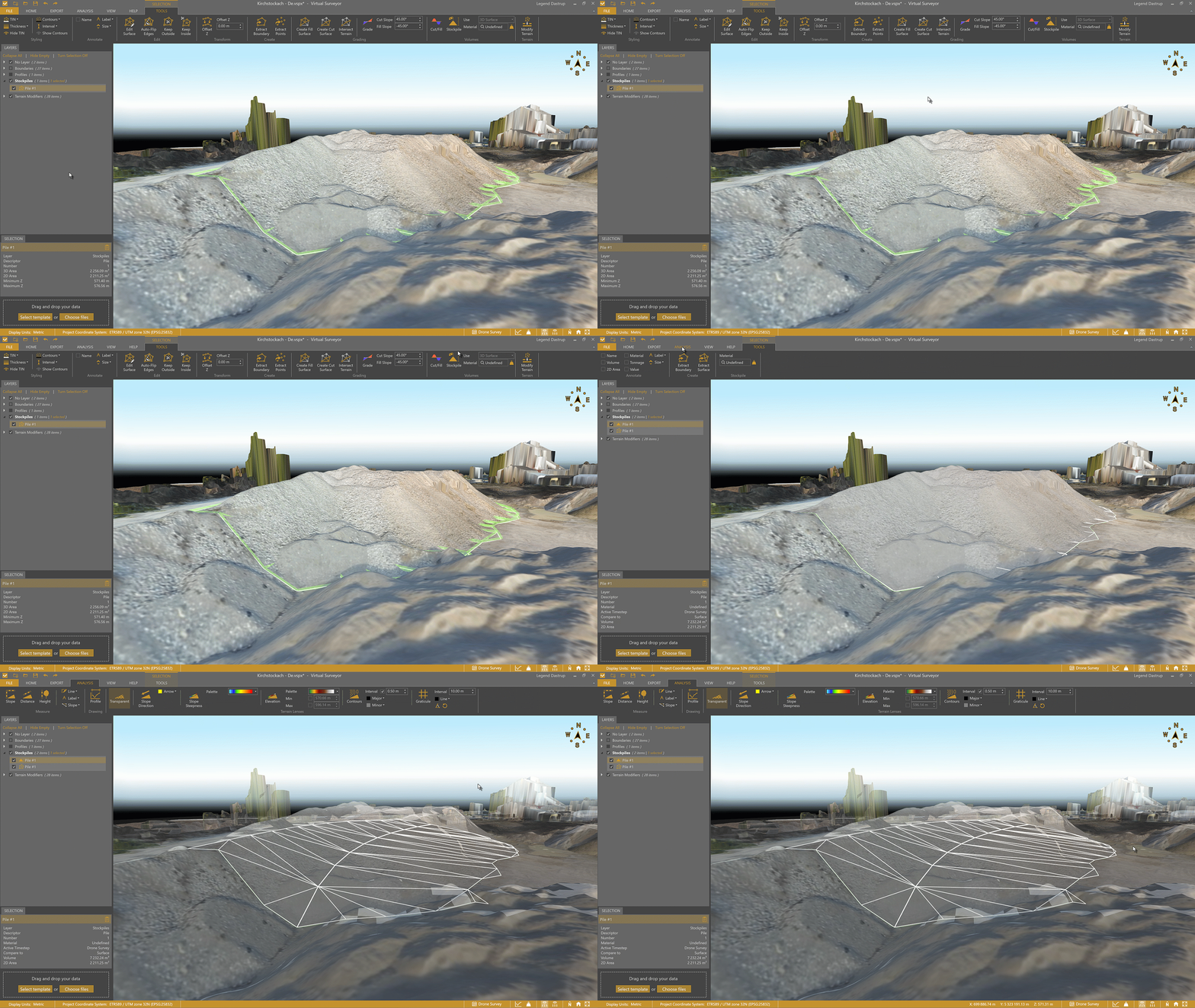
After creating the stockpile, select it and enable the Transparency lens to visually confirm that the surface beneath the pile has been placed correctly.
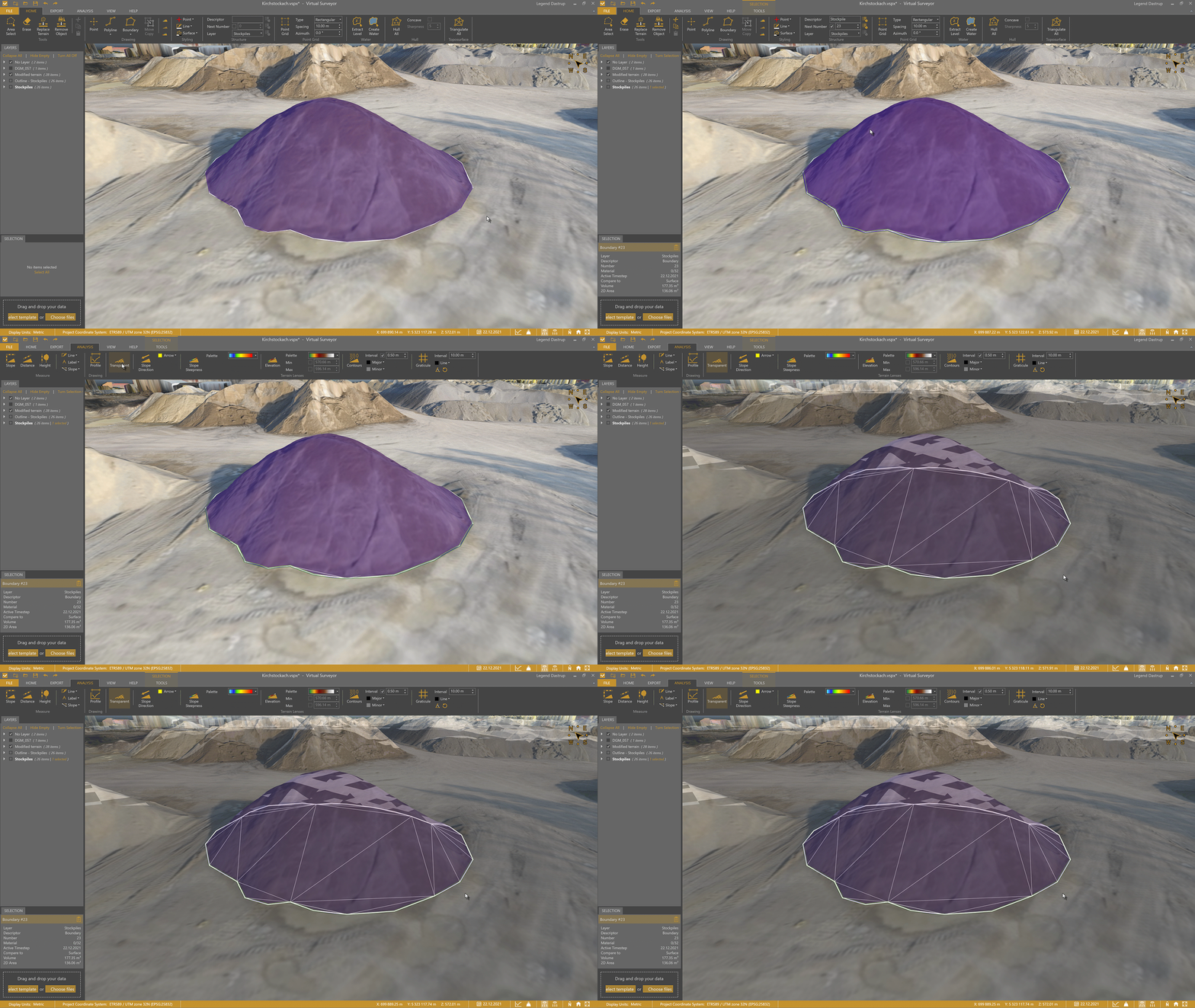
Freestanding stockpiles are calculated the same way whether they rest on flat ground or on a slope. Each point you place along the boundary captures the surrounding terrain at the correct elevation, allowing the software to build an accurate reference surface under the pile.
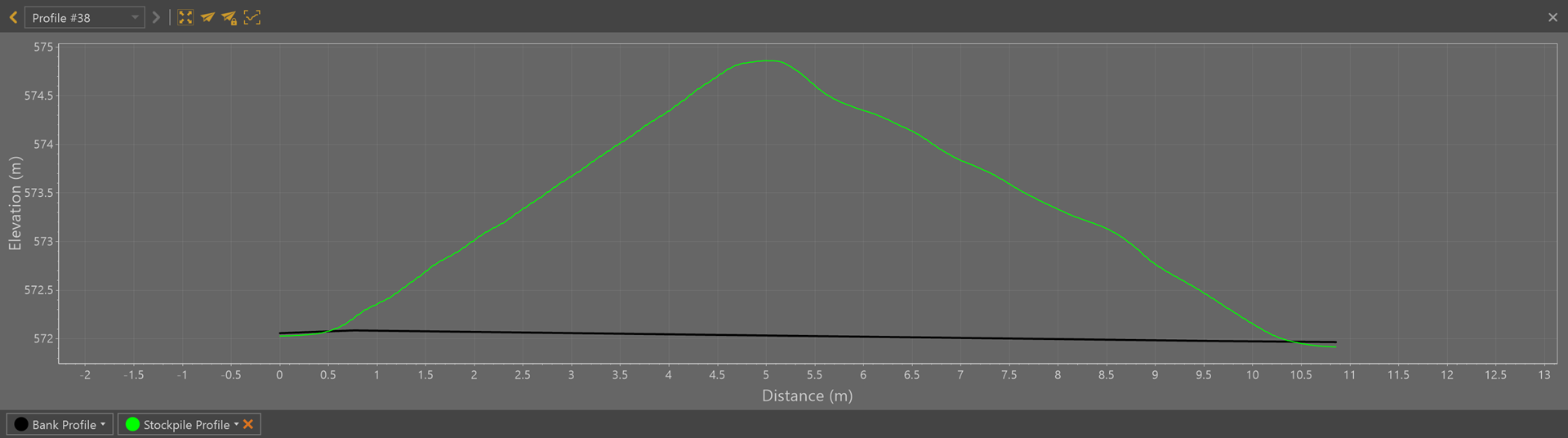
Profile view of a freestanding stockpile on a flat surface
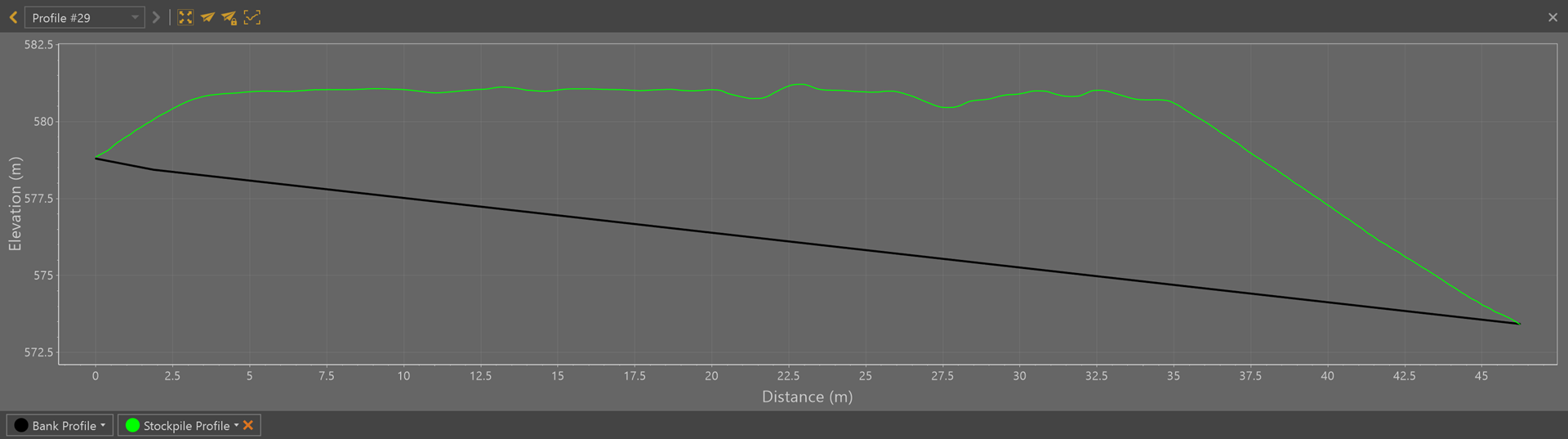
Profile view of a freestanding stockpile on sloped terrain.
Open Wall Stockpiles on a Flat Area
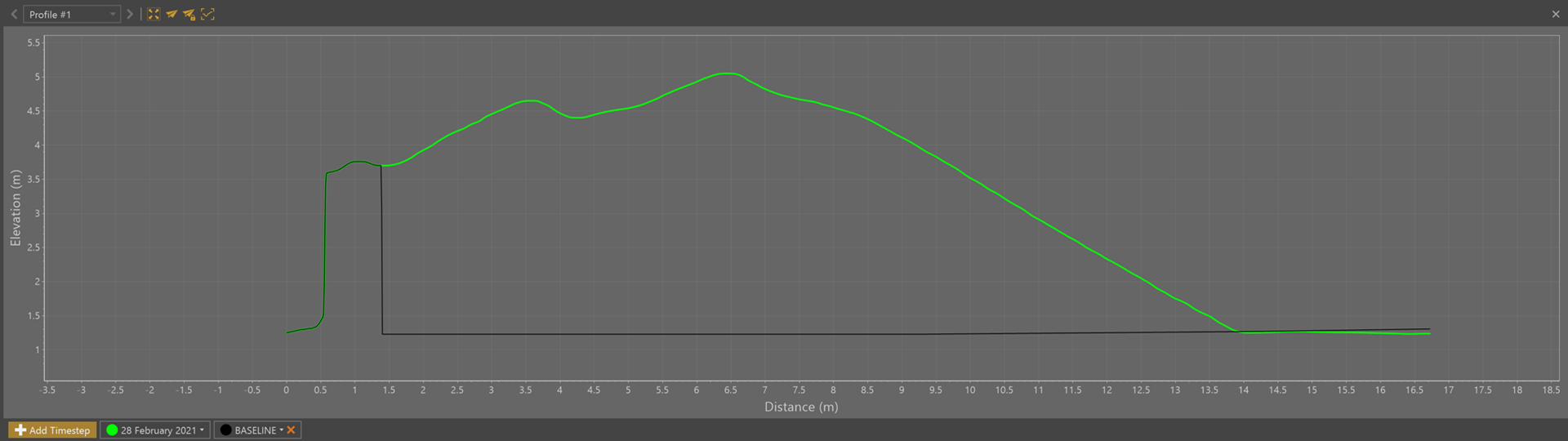
For open wall stockpiles on flat ground, select the Flat Minimum setting. This creates a level reference surface based on the lowest boundary vertex.
Because the ground is flat across the entire stockpile, you don't need to estimate the elevation of the vertices along the back wall (which are hidden beneath the material). The ground level at the front of the stockpile can be used confidently as the reference for the entire base.
At least one vertex must be placed on the ground in front of the stockpile for the Flat Minimum method to work correctly.
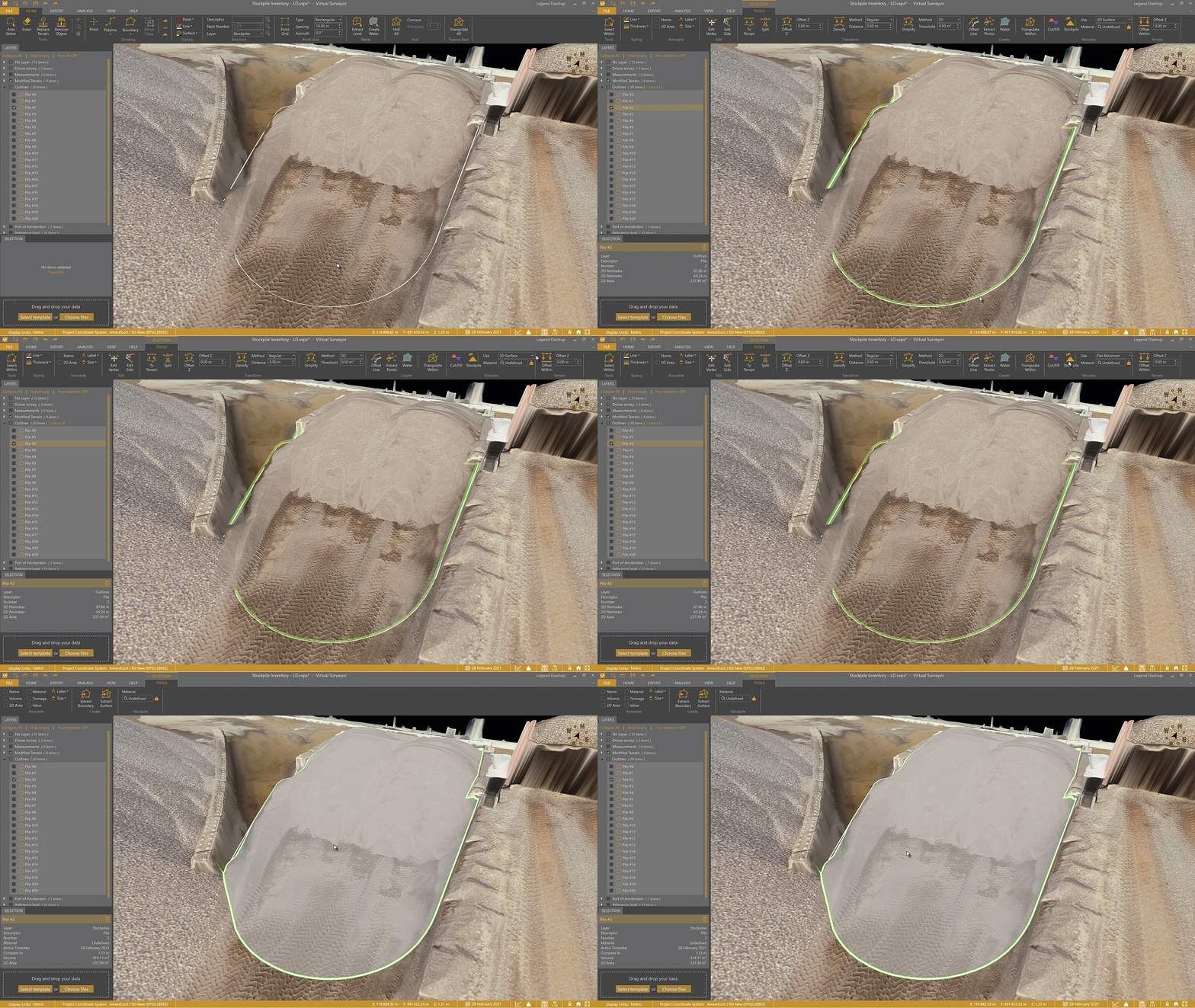
Use the Transparency lens to validate the surface beneath the stockpile and confirm that the baseline has been applied correctly.
Profile view of the open-walled stockpile using the flat minimum setting
Enclosed Wall Stockpiles
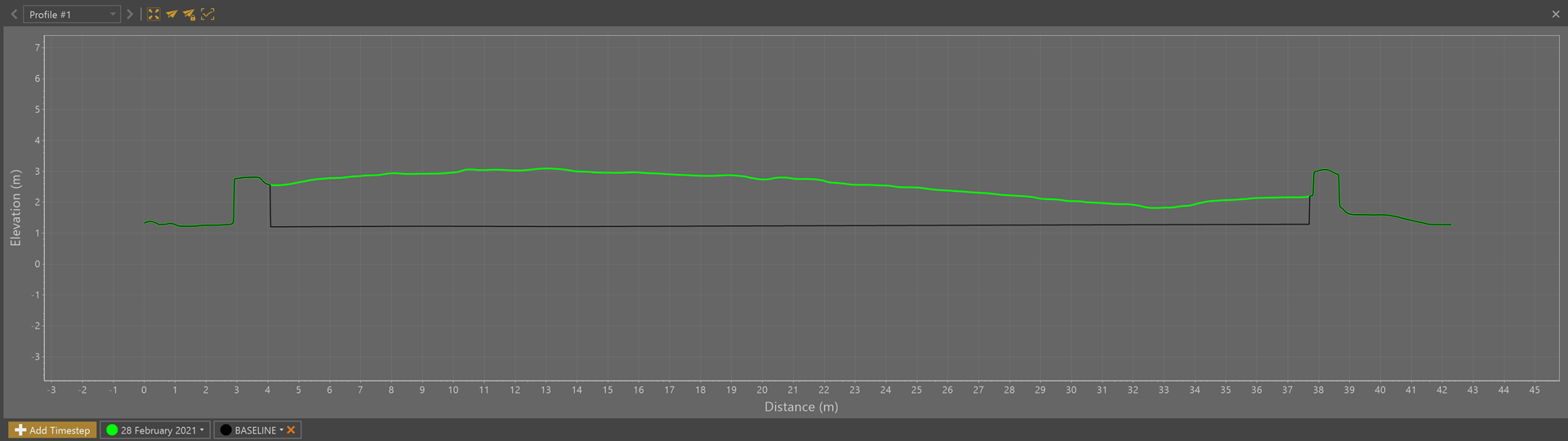
For enclosed wall stockpiles, manually define the floor elevation beneath the pile and select the Flat method.
Because the stockpile is fully enclosed, there are no visible vertices at ground level to reference the underlying terrain. This means the baseline elevation must be estimated using the surrounding terrain — similar to how you would approach open wall stockpiles on a slope.
To find a reliable elevation value, hover your mouse over the ground just outside the walled area. The Z value at your cursor location is displayed in the status bar. Use this value as your best estimate for the stockpile baseline, then enter it in the Elevation field before creating the stockpile.
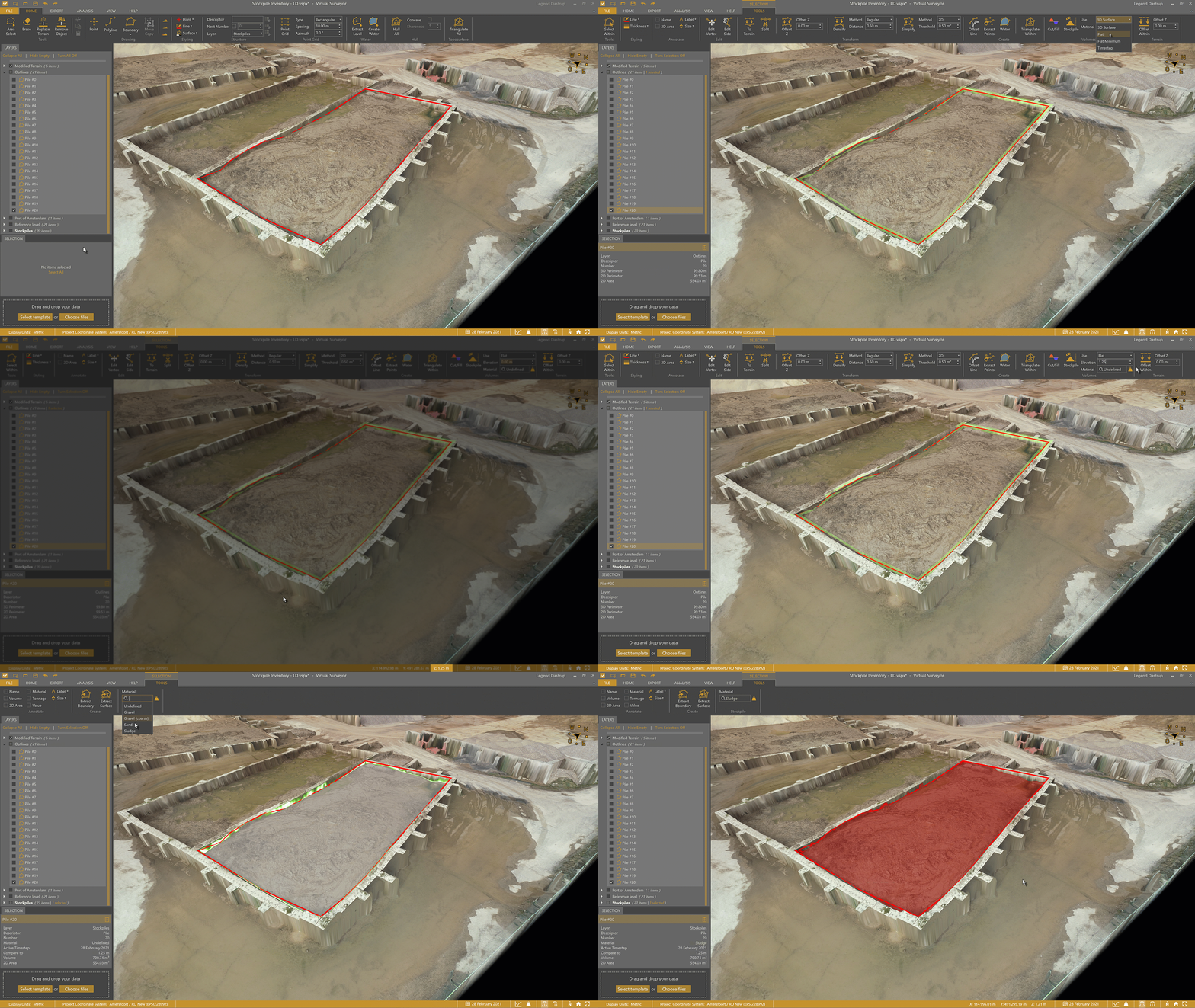
After creating the stockpile, select it and enable the Transparency lens to visually confirm that the baseline surface is positioned correctly beneath the pile.
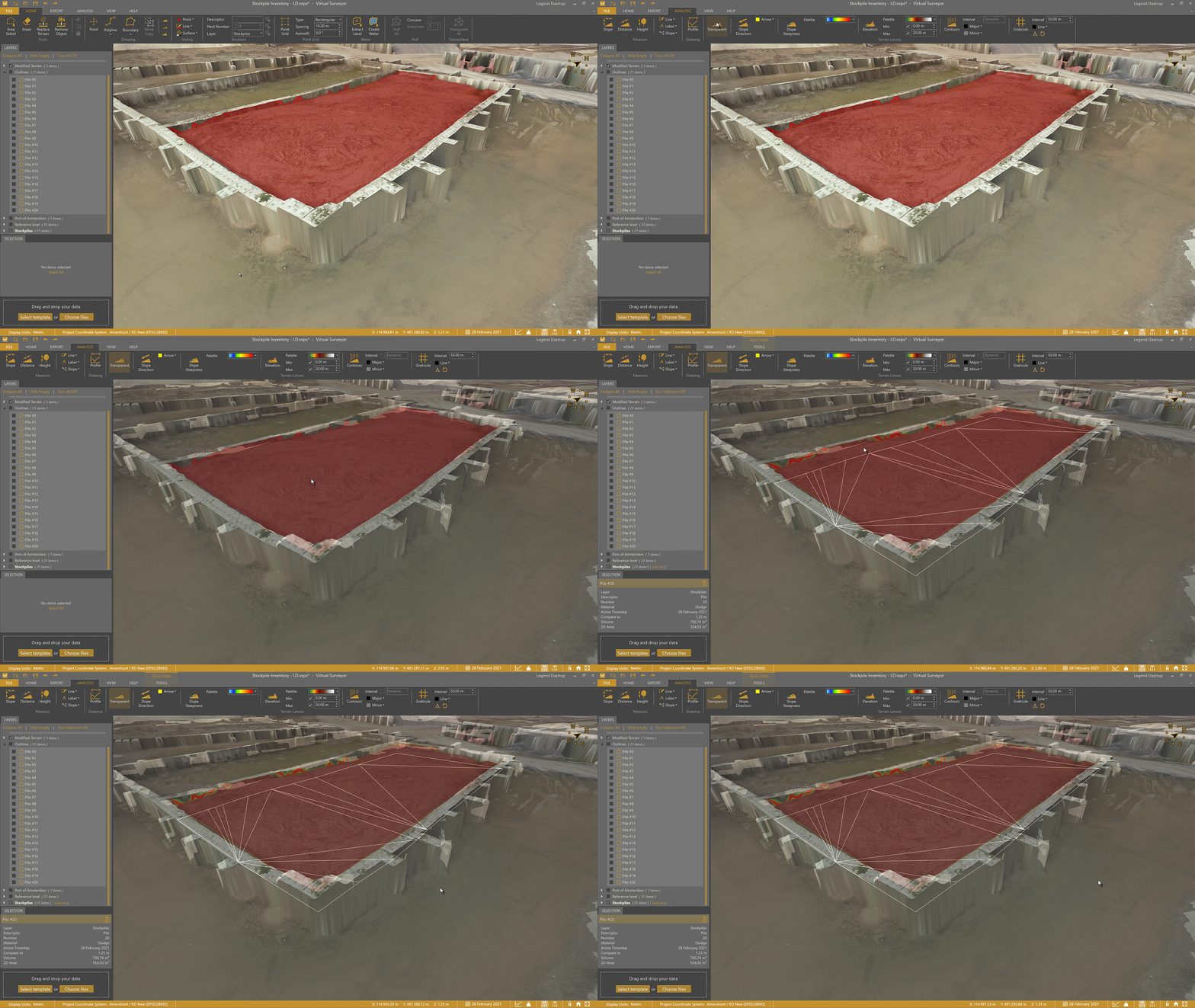
Profile view of an enclosed wall stockpile with the Flat surface setting
Open Wall Stockpiles on Sloped Areas
When an open wall stockpile sits on sloped terrain, a bit more setup is needed to accurately define the baseline beneath the pile. These stockpiles are often designed to allow water to drain, which means the ground underneath typically follows a slope.
At the front of the pile, you can usually see and measure the ground level directly. However, the back of the stockpile is hidden behind the wall and beneath the material, so the elevation there must be estimated. To do this, use your judgment based on the surrounding terrain just outside the wall to approximate the ground level under the pile.
There are two common types of outlines for open wall stockpiles on a slope: simple and complex.
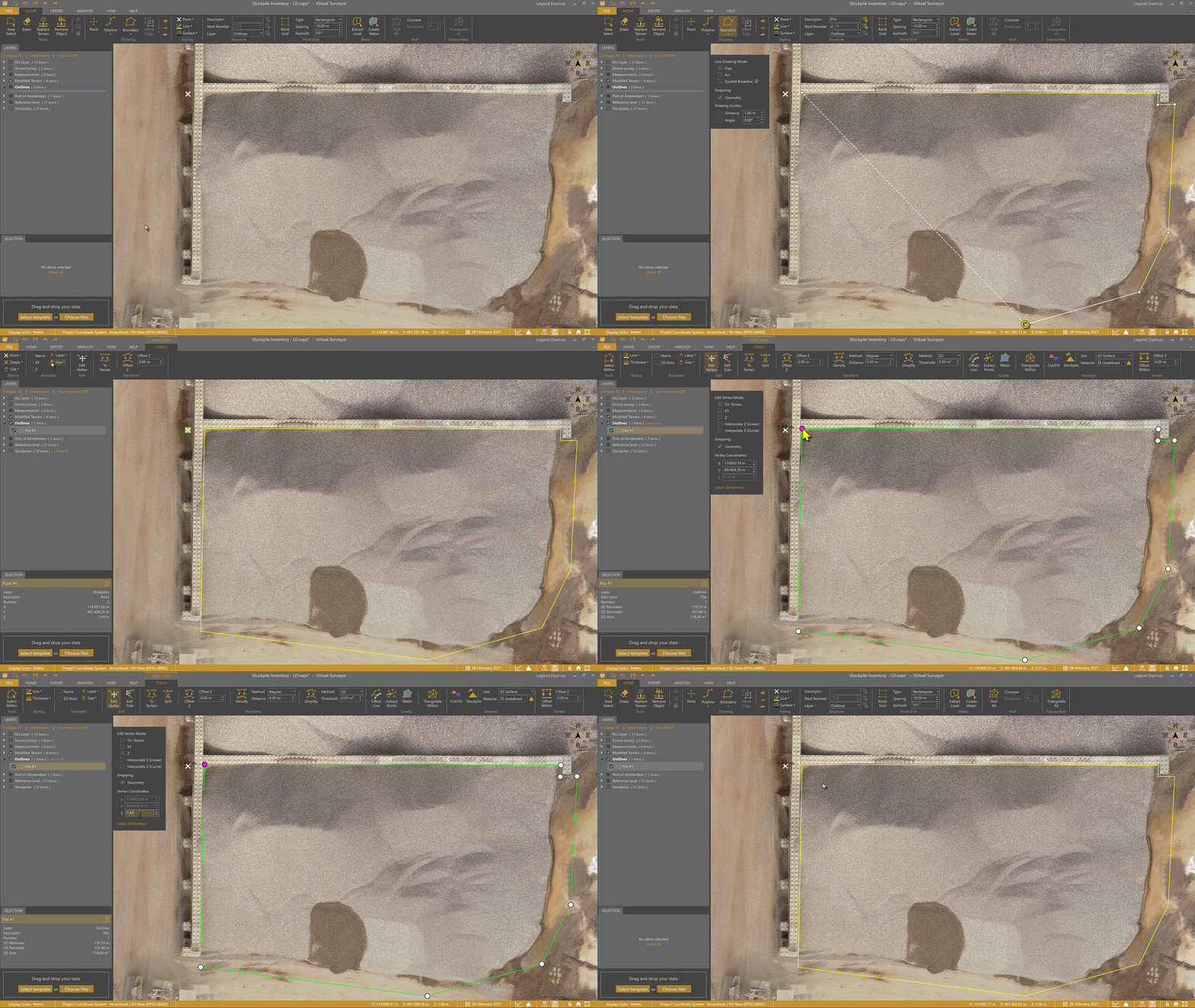
Outline for a Simple Stockpile with a Slope
After drawing the boundary, manually adjust the Z values of the vertices along the back of the pile (those hidden behind the wall) to approximate the ground level beneath the stockpile.
A practical approach is to sample elevations from nearby terrain just outside the wall, selecting points that best represent the expected ground level under the pile. Once the front and back vertices are set, the slope is naturally defined between the highest and lowest points of the boundary.
Outline for a Complex Stockpile with a Slope
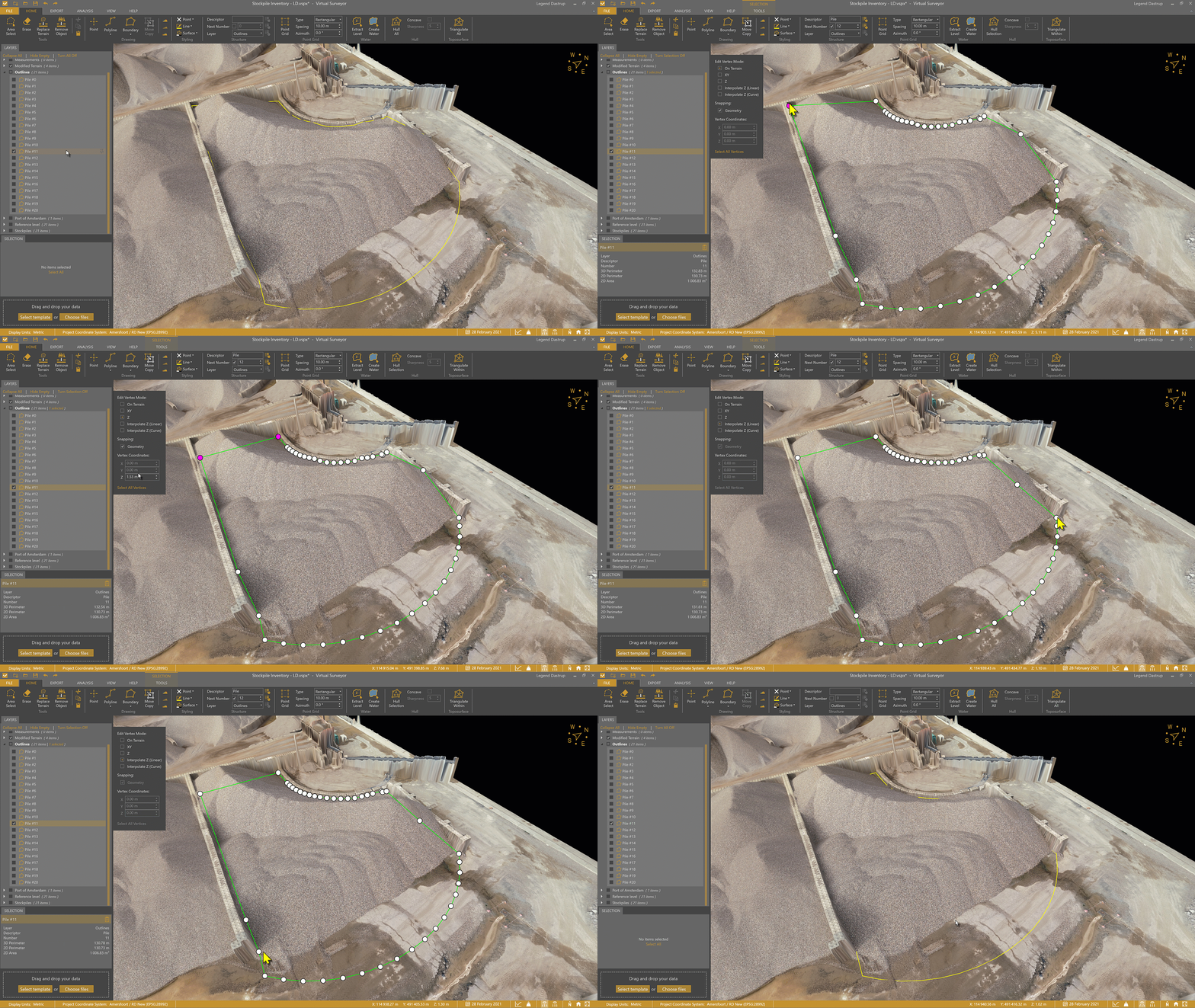
For more complex stockpiles with multiple angles or irregular shapes, the same principle applies: manually adjust the Z values where the ground is hidden by the wall.
You can use Interpolate Z to create a smooth transition between vertices on a slope. This helps accurately represent changes in slope across more complex sections of the boundary, and also saves time because you don't need to manually edit all vertices.
Create and Validate the Slope of an Open Wall Stockpile
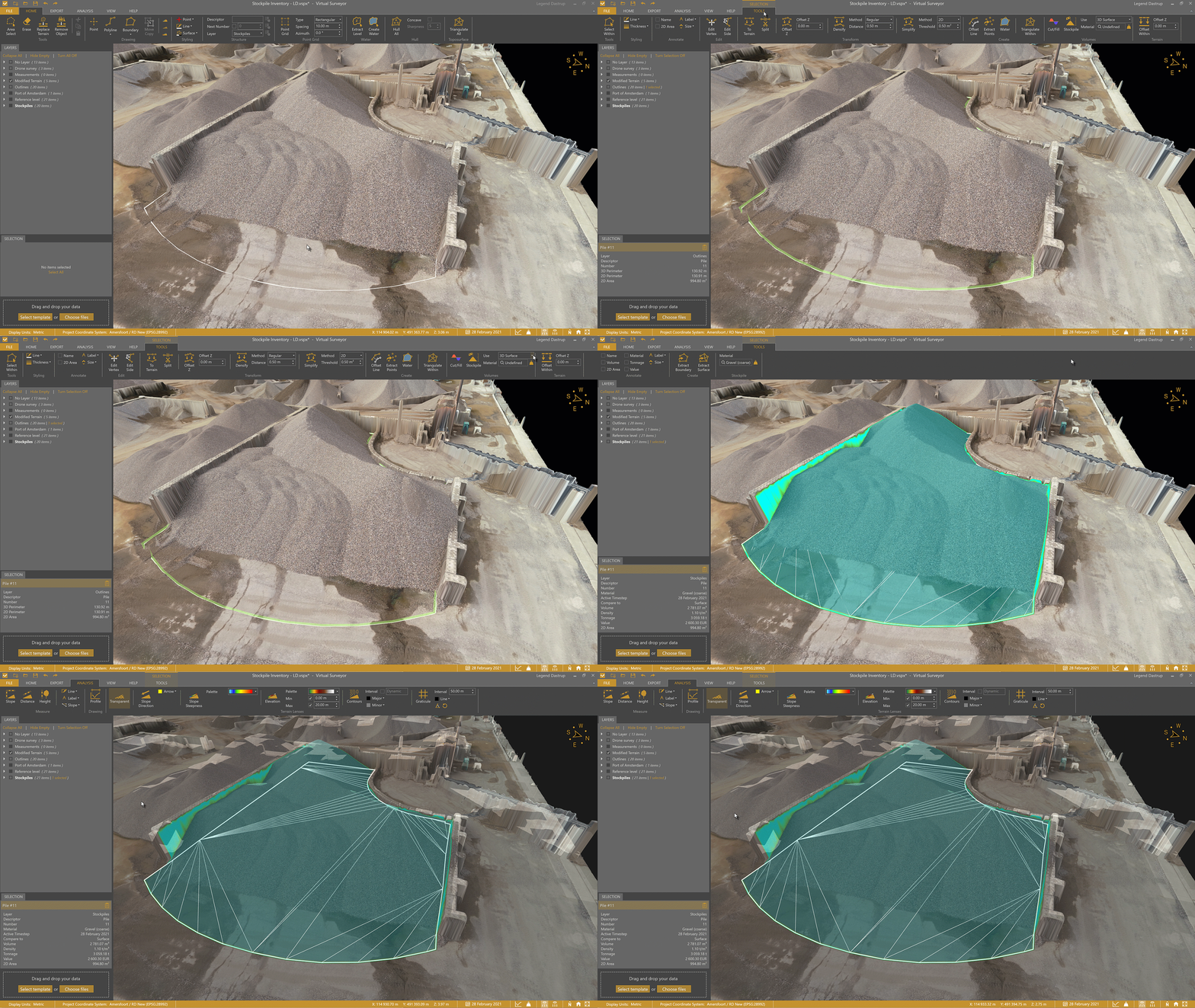
Once the boundary and vertex elevations are set, create the stockpile using the 3D Surface setting.
After creating the stockpile, use the Transparency lens to validate that the baseline surface follows the intended slope beneath the pile.
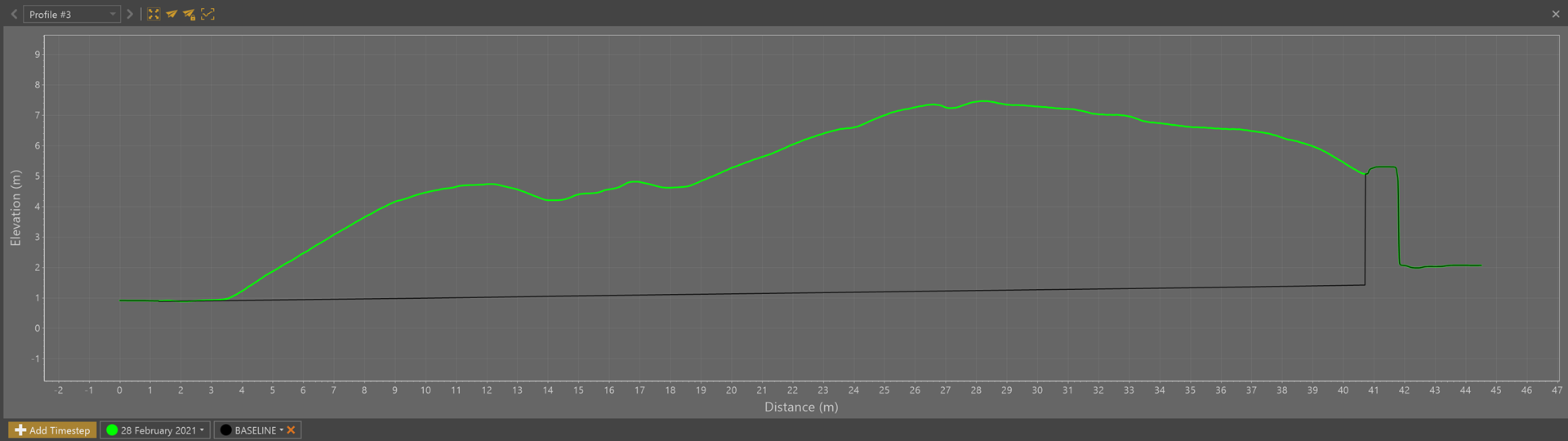
Profile view of an open-walled stockpile on a slight slope
Overlapping Stockpiles
Overlapping stockpiles require careful boundary definition to clearly separate one pile from another and ensure each volume is calculated accurately.
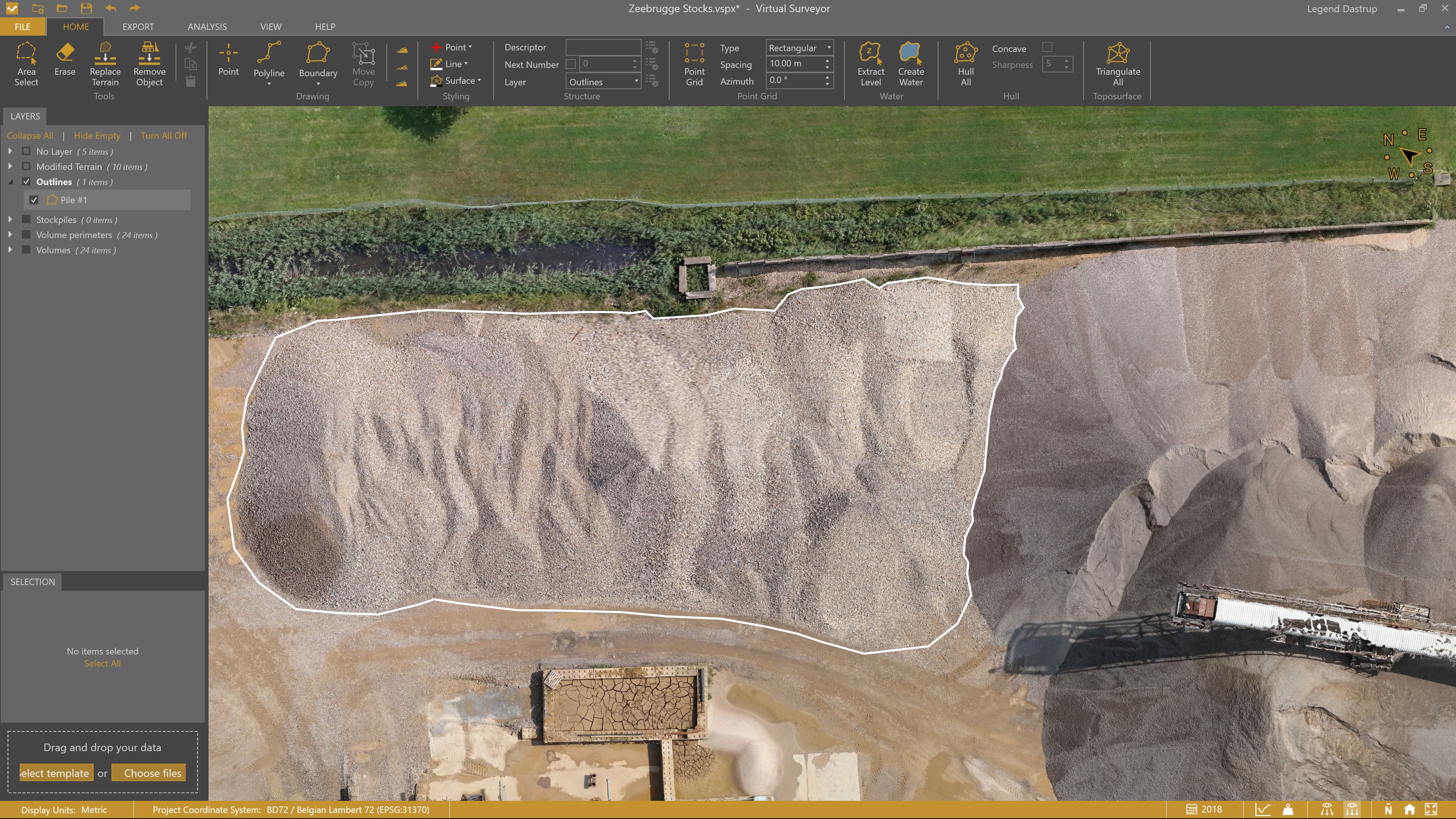
Start by drawing a boundary around the stockpile in 2D view mode, using On Terrain mode as you would for a freestanding stockpile. As you place points along the overlapping area, take extra care to clearly define where one pile ends and the other begins.
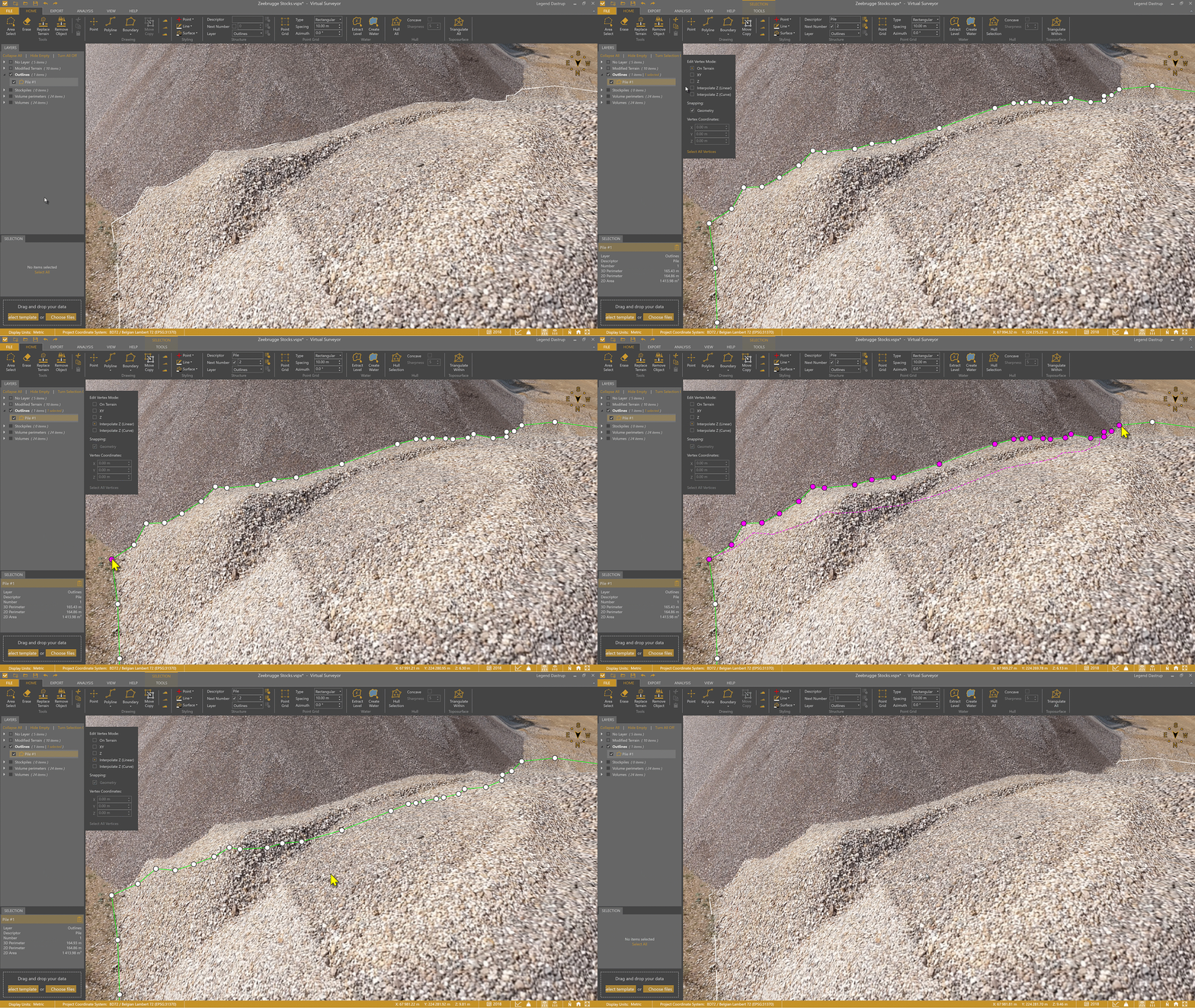
Next, use Interpolate Z to adjust the boundary so it follows the ground level beneath the overlapping area. This step ensures that the baseline for the stockpile is correctly positioned under the material.
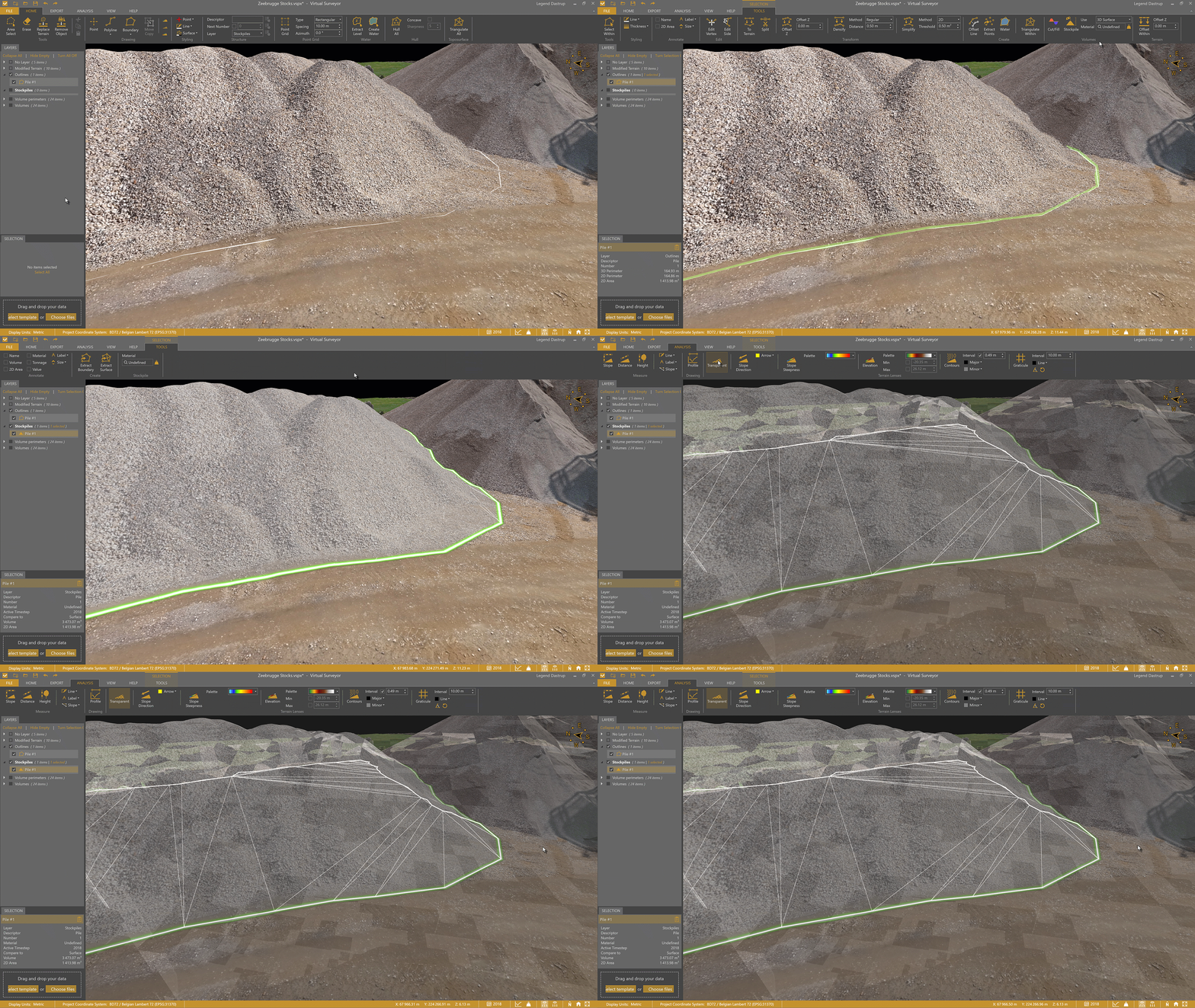
Once the stockpile is clearly separated and the boundary elevations are set, create the stockpile using the 3D Surface setting. This uses the corrected vertex elevations to form an accurate baseline.
After creating the stockpile, use the Transparency lens to validate that the surface beneath the pile is positioned correctly.
Stockpile on a Bank
To accurately calculate a stockpile on a bank, you first need to model the terrain beneath it by creating a surface under the pile.
Start by drawing a boundary around the stockpile. Then draw one or more breaklines that follow the toe of the bank beneath the pile. These breaklines define the changes in slope and form the foundation of the surface you’ll use for the calculation. (For a detailed walkthrough, see the Calculate a Stockpile Over a Bank article.)
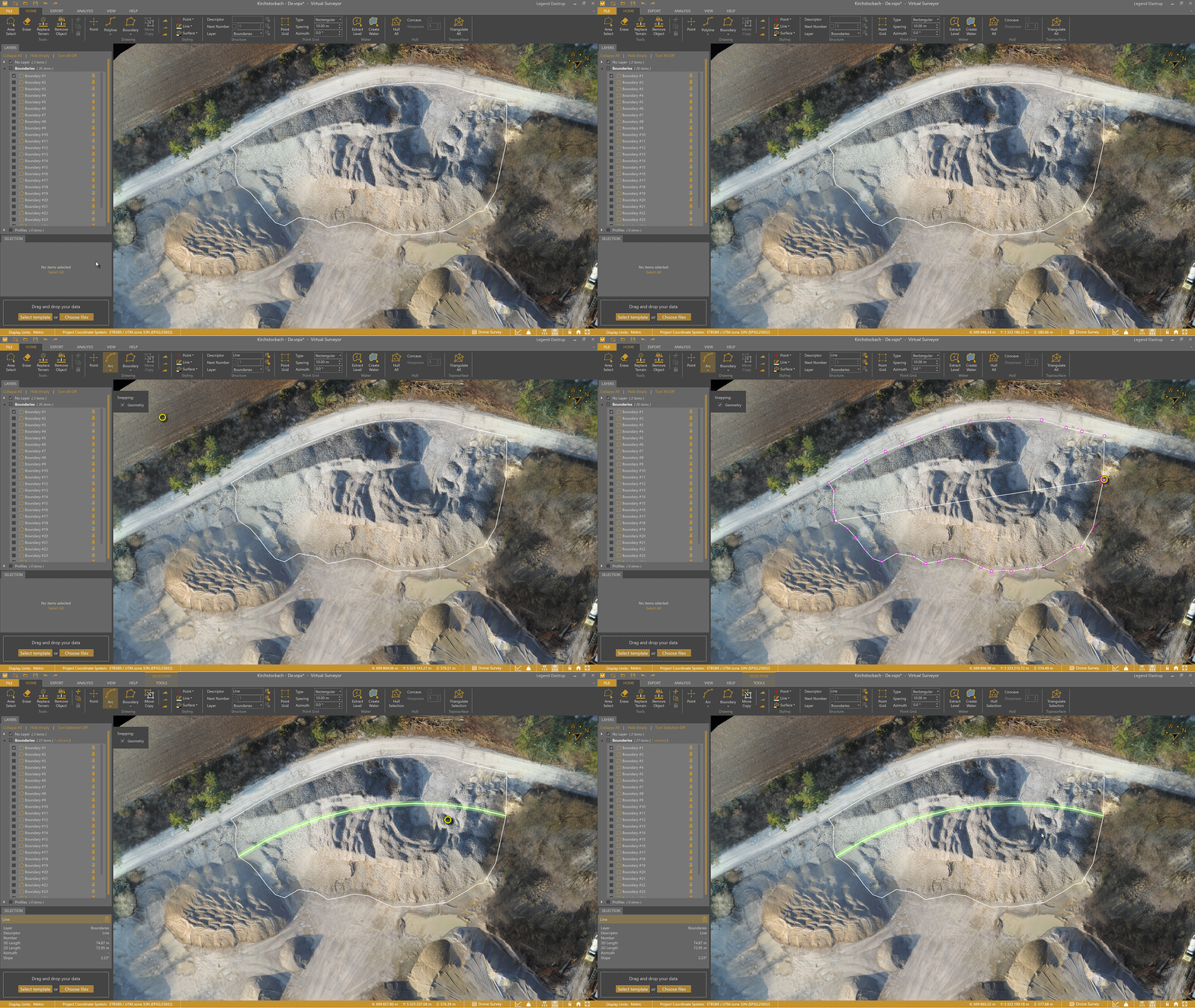
Next, use Interpolate Z to adjust the elevation of the breaklines so that it models the toe of the bank beneath the stockpile. Once positioned correctly, triangulate a surface using these breaklines to represent the underlying terrain.
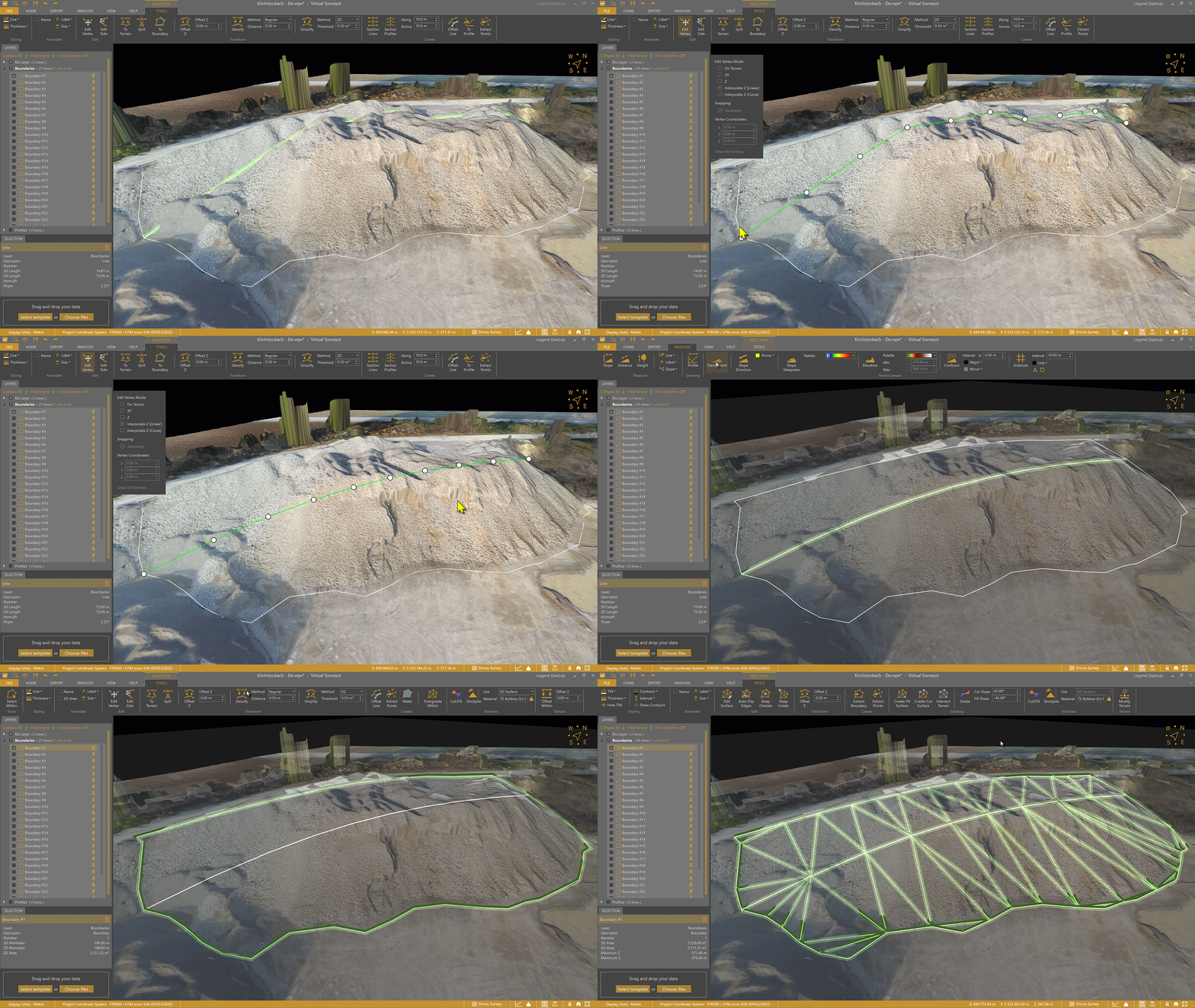
With the surface defined, select it and click the Stockpile button. No additional surface setting is needed, since the baseline has already been created. As with other stockpile types, use the Transparency lens to confirm that the surface beneath the pile is accurate.
Stockpiles Over Complex Terrain
Any stockpile located over a bank, gradient, or trench requires a manually created surface beneath it. This is done by defining the terrain using breaklines at each change in slope.
The number of breaklines depends on the complexity of the terrain:
- A stockpile on a bank typically requires one breakline
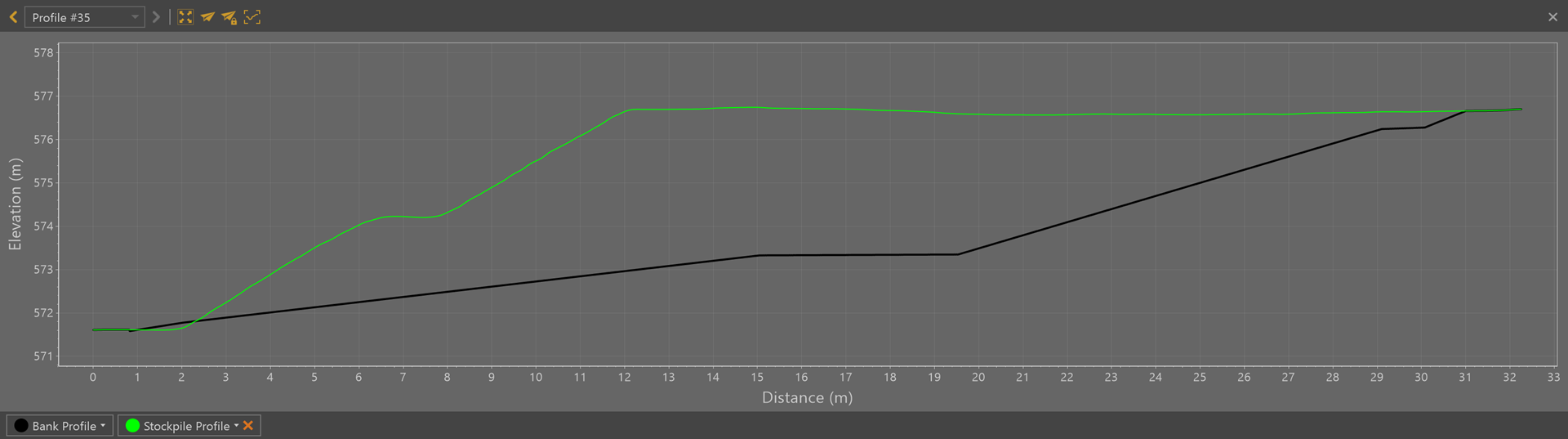
- A stockpile on a gradient typically requires two breaklines
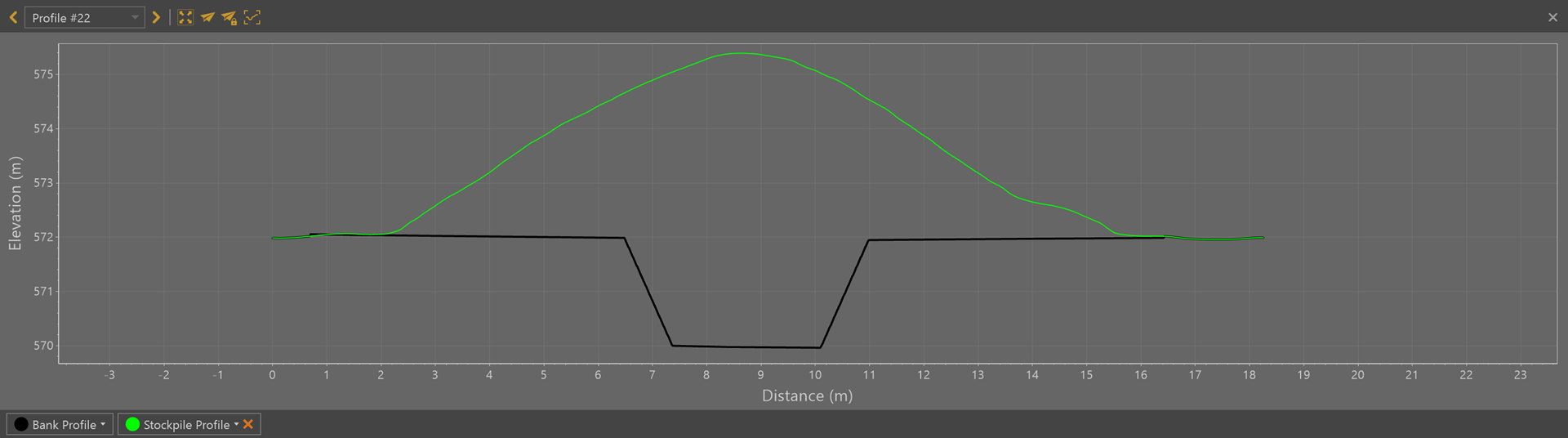
- A stockpile over a trench may require four or more breaklines
Each breakline helps shape the surface so it more accurately reflects the ground beneath the stockpile.
Profile of a stockpile over a bank - one breakline
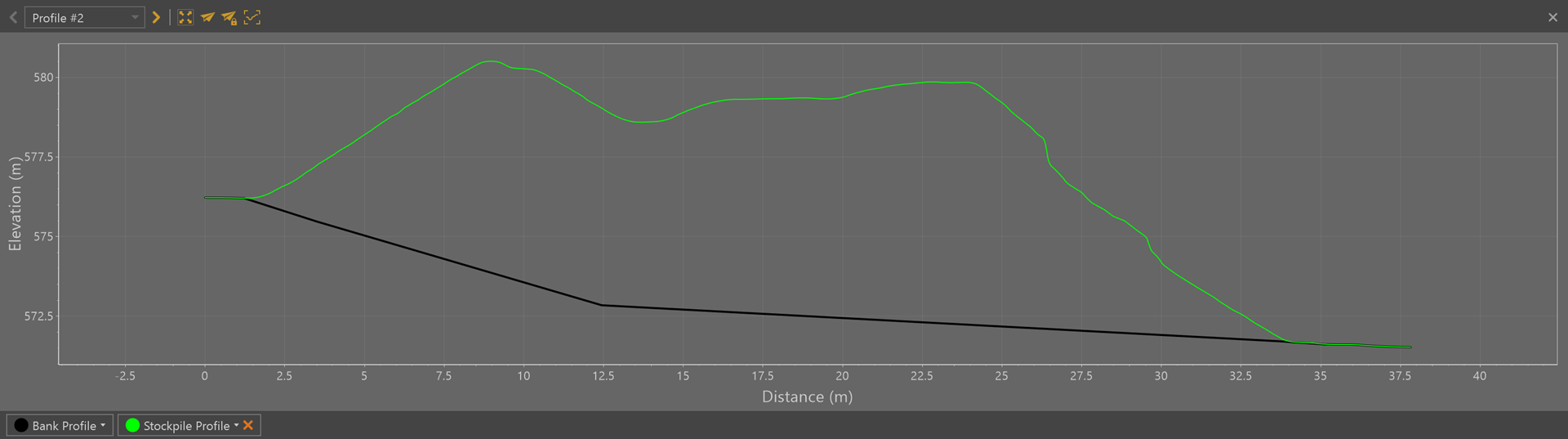
Profile of a stockpile over a gradient - two breaklines
Profile of a stockpile over a trench - multiple breaklines
Validation
Once your stockpile has been created, it’s always a good idea to validate the calculation before exporting results or sharing reports.
Stockpile accuracy depends heavily on the baseline surface beneath the pile. A quick validation step helps confirm that the reference level is correctly placed, especially for walled, overlapping, or banked stockpiles.
VirtualSurveyor includes several tools that make it easy to visually check your stockpile surface and ensure your volume results are reliable.
- Quickest way - use the Transparent Lens, as shown in each of the examples above.
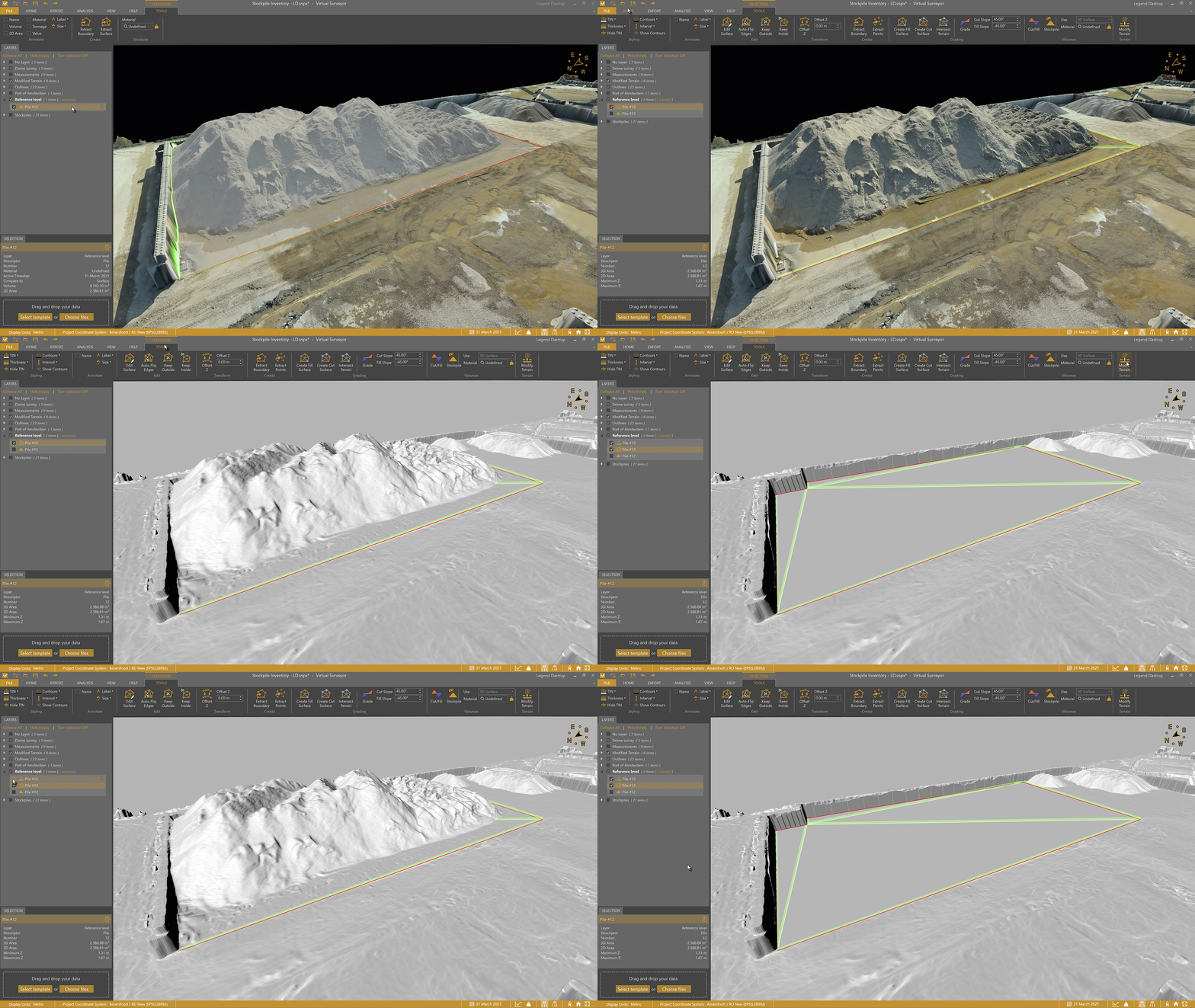
- Most effective way - display the reference surface of the stockpiles using Modify Terrain.
Display Reference Surfaces
The visual validation of extracting the stockpile surface is immediate. As an example, after creating your stockpile you can use the Extract Surface tool to create a reference level beneath the pile, then use Modify Terrain to remove the pile. You can then enable/disable the modified terrain to visualize the baseline of the stockpile.
See Stockpile Results
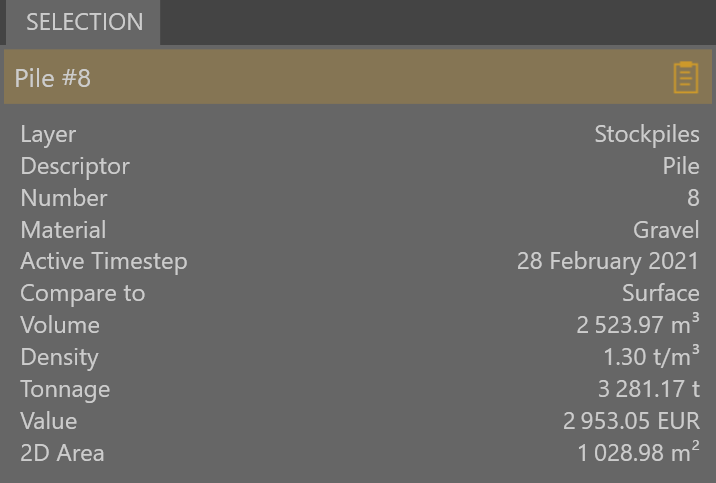
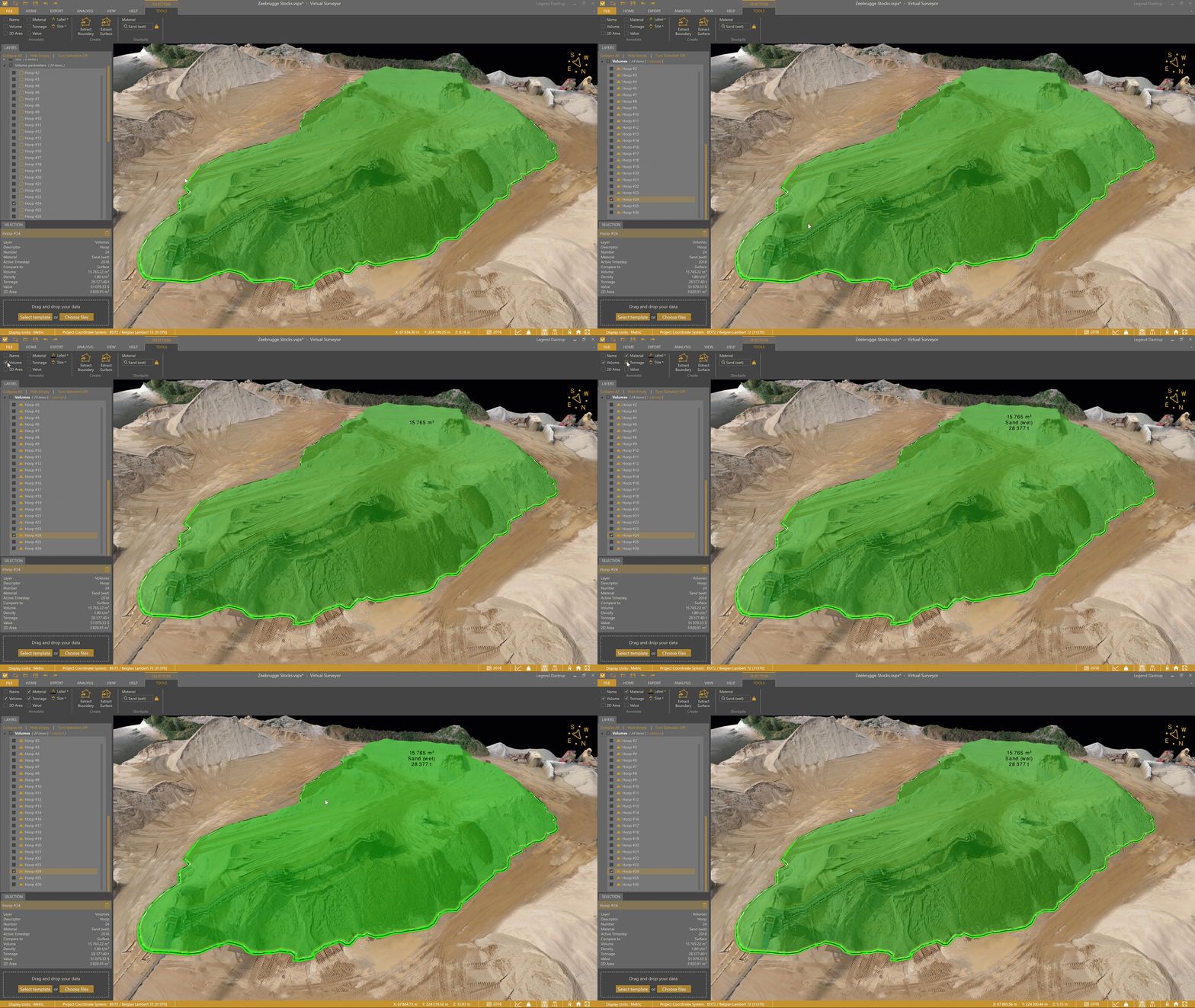
View stockpile information - Stockpile inventory details appear in the Selection box and shows all available statistics for the selected stockpile.
Annotate stockpiles - Tick the Volume checkbox in the annotation settings found in the TOOLS tab when a stockpile is selected to display the net volume value in the Viewport over the stockpile.
Tips to Get the Most Out of Stockpiles
- Stockpiles over time - Use Timesteps to analyze stockpile surveys over time as they are captured by the drone or contrast stockpiles against their baseline by copy and pasting pile boundaries created from the first survey to a later Timestep.
Access the Timeline from the View tab or the calendar icon in the status bar. (Peak/Mountain users only.) - Recalculate stockpiles - If any changes are made to the stockpile, you can select it and use the recalculate function to update the pile values.
- Import stockpile boundaries - Import DXF files to define stockpile bases — especially useful for sites with fixed storage locations.
- Create multiple stockpiles at once - Select multiple boundaries that share the same surface type and click Stockpile to calculate them simultaneously.
- Next step - Generate a stockpile PDF report or export your stockpiles as a .csv or .shp file.