

The Backstage View is the full-screen workspace that appears when you click File in the VirtualSurveyor or TerrainCreator app. It’s where you take care of project and application-level tasks, such as creating, opening, and saving projects, and managing application settings.
The backstage View opens automatically when you start either application, so you can quickly get to work. Within this workspace, a key feature is the integrated file and folder navigation experience, which helps you efficiently find existing projects and create new ones in your preferred locations.
This article gives an overview and links to more detailed information on all available functions of the Backstage View.
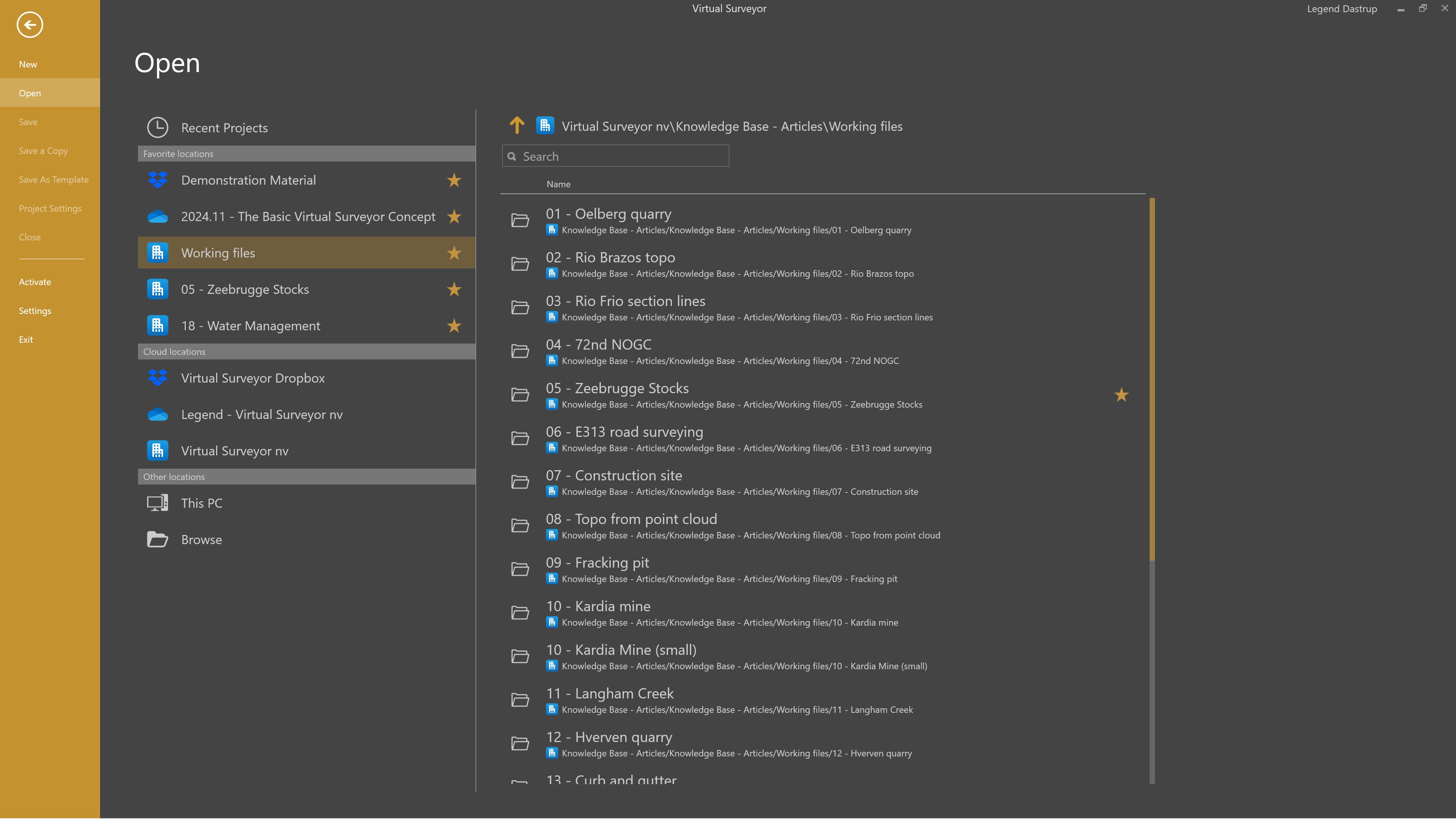
Backstage Command Descriptions
Here are the following command descriptions along with links to relevant articles in the Backstage View:
| Name | Description | Shortcut |
|---|---|---|
| New | Creates a new project. You can save it locally or in a Cloud Storage location. | Ctrl+N |
| Open | Open an existing project. The Recent Projects list shows your most recently used files, or you can browse to a Cloud Storage location or a local folder. | Ctrl+O |
| Save | Save your changes to the current project file and return to the Main View. | Ctrl+S |
| Save a Copy | Save a duplicate of your project as a new project file. You can also copy terrain files to keep everything in one folder. | Ctrl+S |
| Save As Template | Save your layer structure and material library as a reusable project template. Available only in the VirtualSurveyor app. | - |
| Project Settings | Update the project name used in PDF stockpile reports, adjust unit settings (Metric or Imperial), and configure volume and slope display options. Available only in the VirtualSurveyor app. | |
| Close | Close the current project and end your work session. | - |
| Activate | Sign in with you Virtual Surveyor ID or view details about your plan, license status, and version. This screen opens automatically if there is a license issue. | - |
| Settings | Manage local coordinate systems, project templates, application language, company logo, graphics preferences, and proxy settings. | - |
| Exit | Close the application. Your license will be released and made available for another user in your organization, if applicable. | - |